Blog · guide
Present a diagram like a talk, without making slides
Diagramly's Present mode turns frames and pinned views into slides. The camera flies between them and each shape sketches itself in as you speak.
A diagram explains a system better than a slide deck does, right up until you have to show it to a room. Then it's either one dense picture nobody can read from the back, or an evening copying bits of it into slides. Present mode is the third option: the diagram is the deck.
Frames are your slides
Here's a multi-AZ deployment with frames around the region, the VPC and each availability zone.
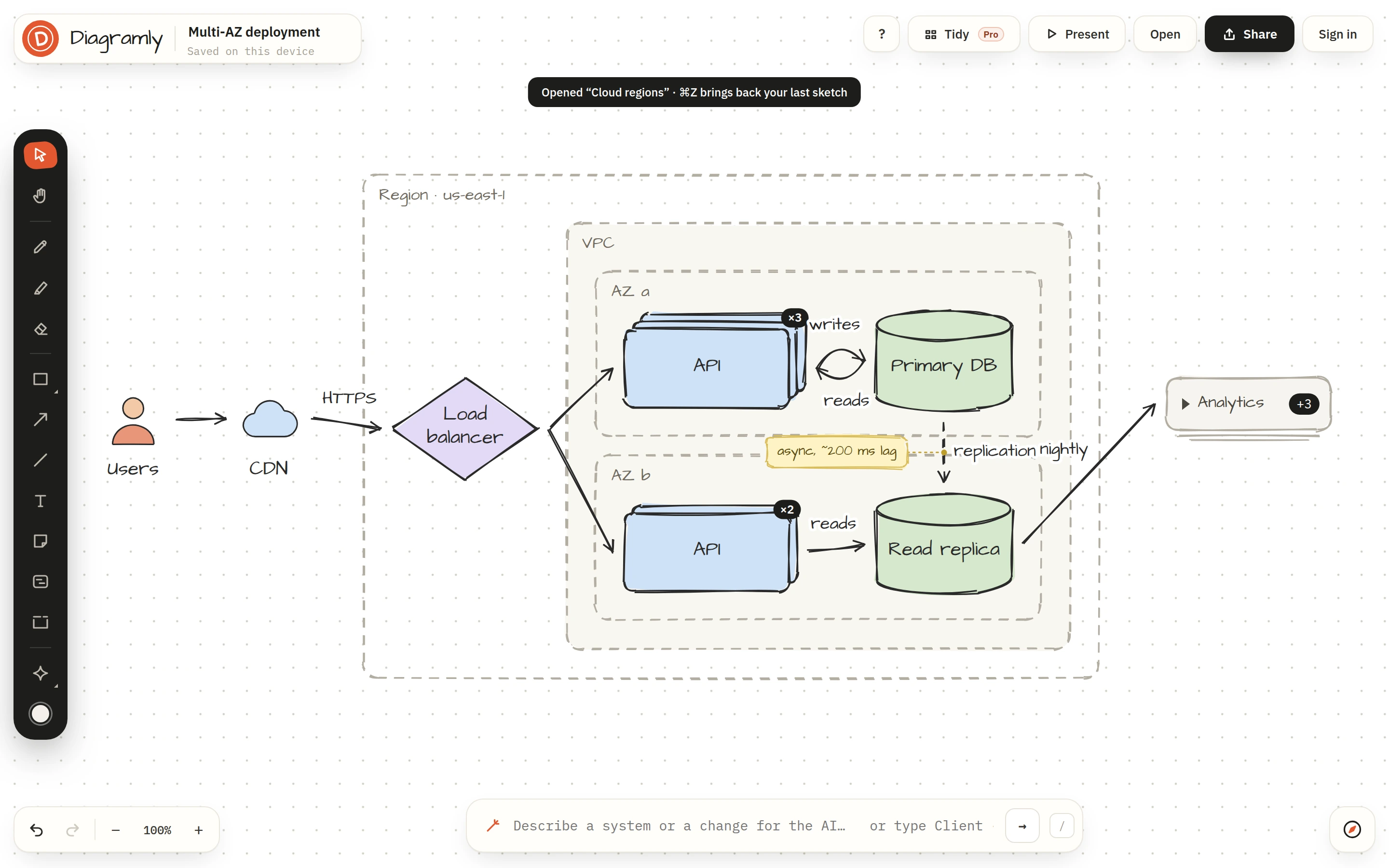
Press ⇧P (or the Present button in the header) and Diagramly builds a presentation from what's already there:
- every frame becomes a slide, in the order the Atlas lists them
- every pinned view becomes a slide after that
- an overview of the whole diagram comes last
So you build the talk the same way you organise the drawing. Edge in one frame, services in another, data in a third: three slides and a finale.
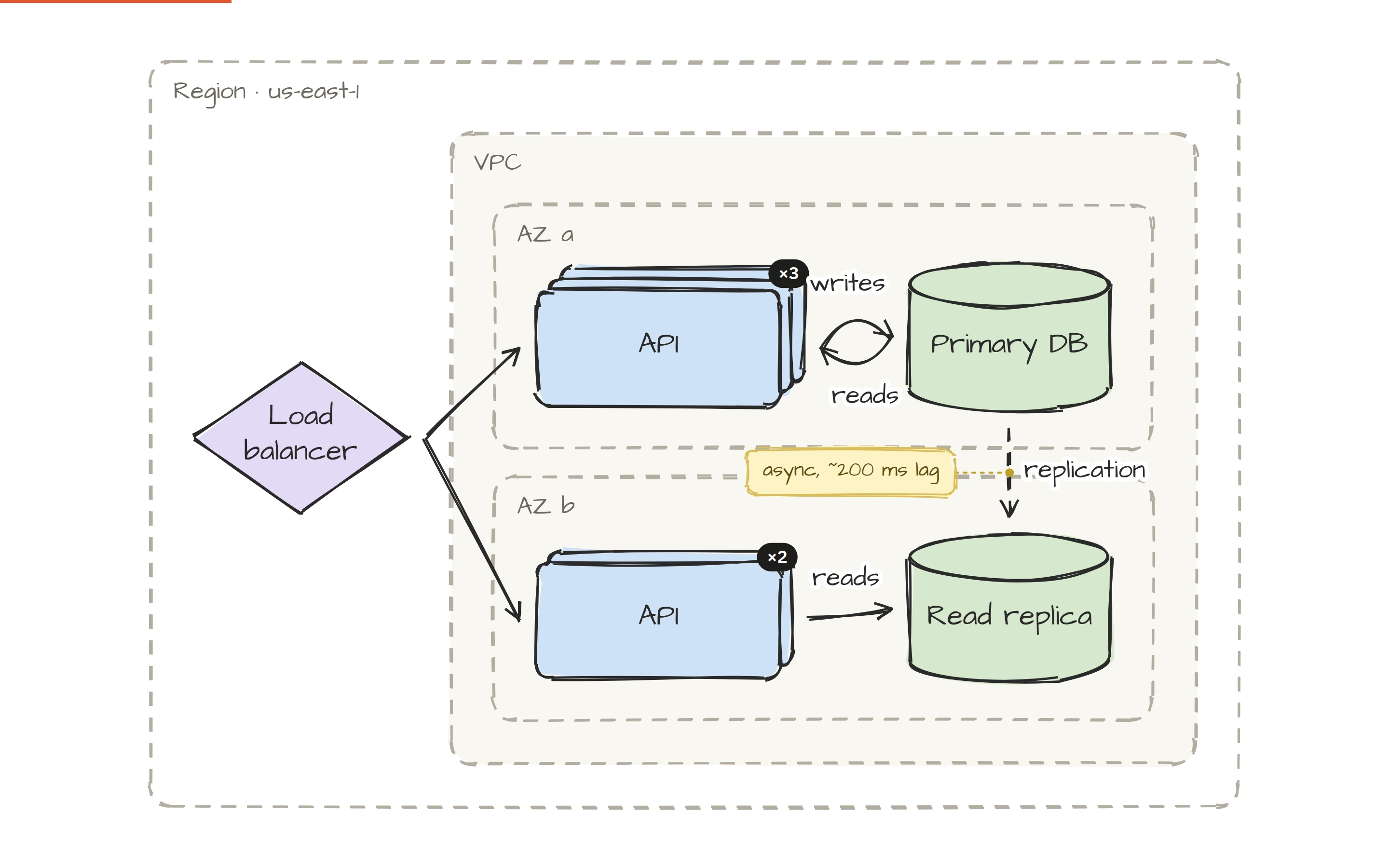
The camera flies, the shapes draw themselves
Moving to the next slide doesn't cut. The camera flies to the next frame, and the shapes that first appear on that slide sketch themselves in, stroke by stroke, the same way the editor draws them. Arrows appear once both their ends are visible. Anything no frame covers waits for the overview.
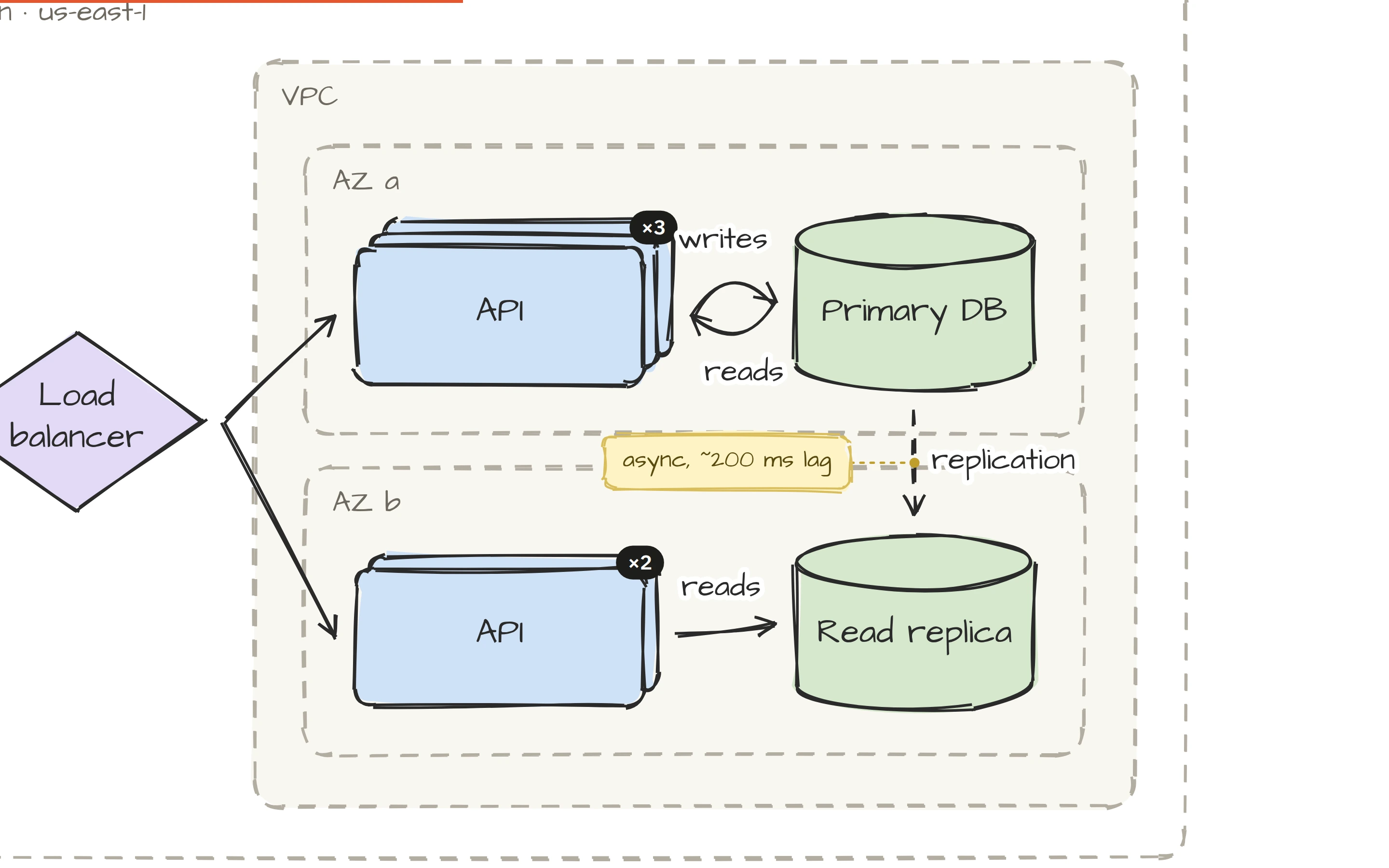
The effect is that the audience watches the system appear in the order you explain it, rather than reading ahead of you.
Controls
| Do this | With |
|---|---|
| Next slide | →, ↓, Space, Enter, click or tap |
| Previous slide | ←, ↑, Backspace, right-click |
| Swipe | on a phone or tablet |
| End | Esc |
It opens in fullscreen, and leaving fullscreen ends it. The slide names and a previous/next pair sit at the bottom and fade after a couple of seconds. If your system asks for reduced motion, the flights and the draw-in are skipped.
It works on shared diagrams too
A view-only link (Share → Link) and a published page both have a Present button, so the person you sent it to can step through it the same way. Nothing to install on the meeting-room machine.
Take the slides with you
If the organisers want a file, Pro's slides export turns the same presentation into a 16:9 PDF, one page per slide, each page showing what would have been drawn by then. It's under Share → Export; the exports post has the details.
Three tips
- Name your frames. The name is the slide title.
- Keep it to three to six frames. More than that and the flights start to feel like a tour.
- The overview is your closing slide, so make sure the diagram reads well when it's all on screen.