Blog · use-case
Put an architecture diagram in your README, your docs and your portfolio
Get a Diagramly diagram into a GitHub README, Notion, a blog or a portfolio: a committed SVG, a GIF, a live image URL, or an embed that updates itself.
An architecture diagram that lives in a tool is one nobody looks at. The useful place for it is next to the code, in the doc people already read, or on the page you send with a job application. Here's how to get a Diagramly diagram into each of those, and how to keep it from going stale.
In a GitHub README
Three options, from simplest to most alive.
1. Commit an SVG. Share → Export → SVG gives you a file with the hand-drawn fonts embedded, so it renders the same on every machine and in GitHub's viewer. Put it in docs/ and reference it:

It scales to any width and stays crisp.
2. A GIF of it drawing itself. For a project page or a launch README, the animated export (Pro) is the same choreography as Present mode, 800 pixels wide, looping. Commit it like any image. It's the thing people screenshot and share.

3. A live image URL. Publish the diagram (Pro) and its picture is served at https://diagramly.xyz/d/<your-slug>/diagram.svg. Reference that URL instead of a file and the README updates whenever you press Update published page, with no commit:

Link the image to the published page and readers can pan, zoom and present it.
There's a fourth option for teams that want GitHub to render the diagram itself: Share → Mermaid exports Mermaid text, and GitHub renders a ```mermaid fence natively. You lose the hand-drawn look, but the diagram becomes text in the repository, which some teams prefer for reviews.
In Notion, Confluence and wikis
Share → Embed gives you an iframe snippet. Pick a height, decide whether to show a caption link under it, and paste it into anything that accepts HTML or an embed block: Notion's embed block, Confluence's HTML macro, Ghost, WordPress, Docusaurus.
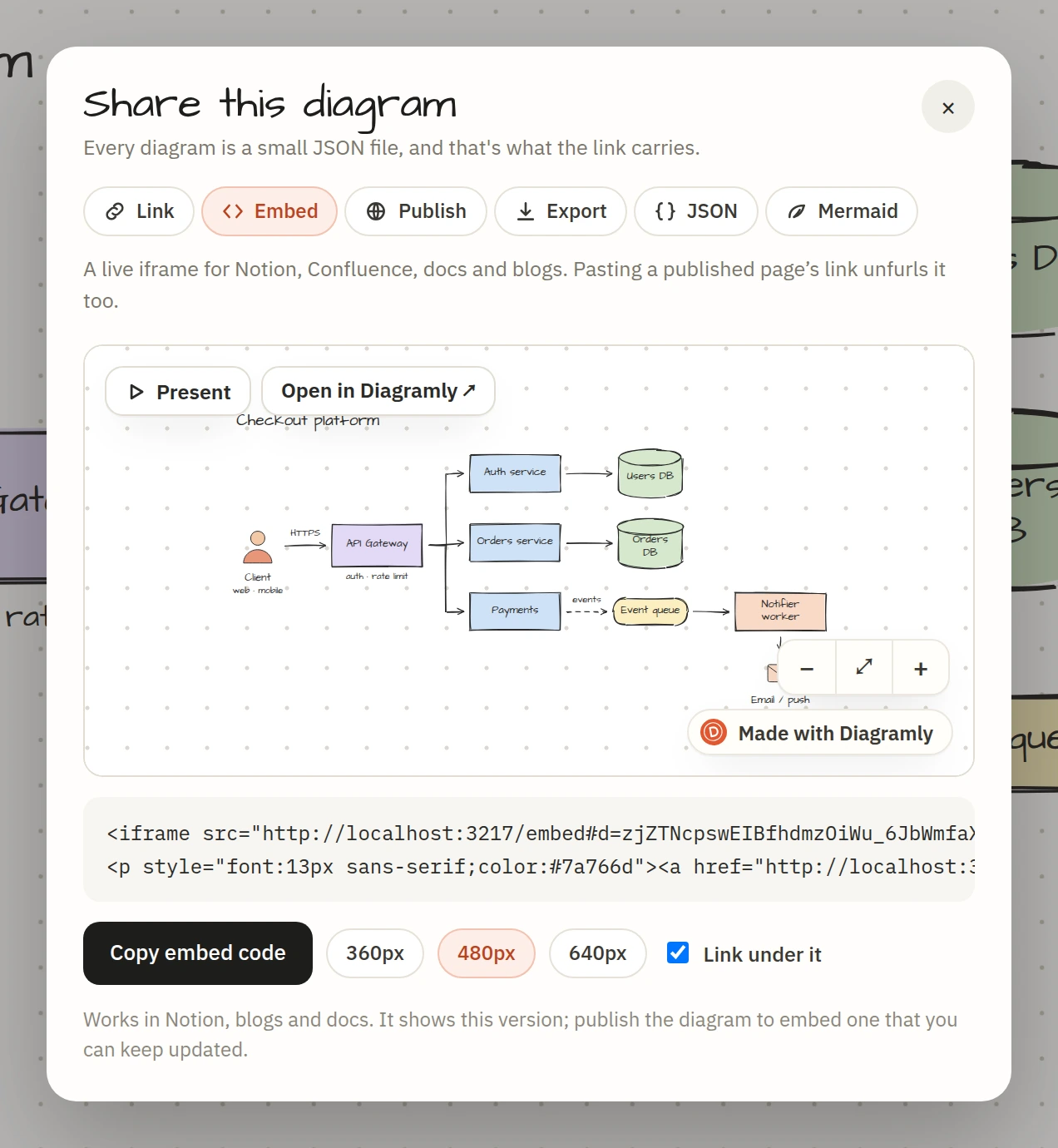
The embed is live. Readers pan, zoom and press Present inside your page. If the diagram is published, the embed shows the published version and updates with it; if it isn't, the diagram travels inside the embed URL and shows that version.
For tools that only take an image (Google Docs, most email), paste a PNG. The 2× export is sharp on a retina screen.
In a blog post
The pattern that works: a still at the top (PNG or SVG) so the page loads fast and the image shows in link previews, the live embed further down where the reader wants to explore, and a link to the published page for anyone who wants their own copy. This blog is built that way.
In a portfolio or a case study
A published page is a portfolio piece on its own: a title, your name and photo, a description, the diagram with Present mode, and a link preview when you share it. Publish the three or four systems you're proudest of and link them from your site or your CV.
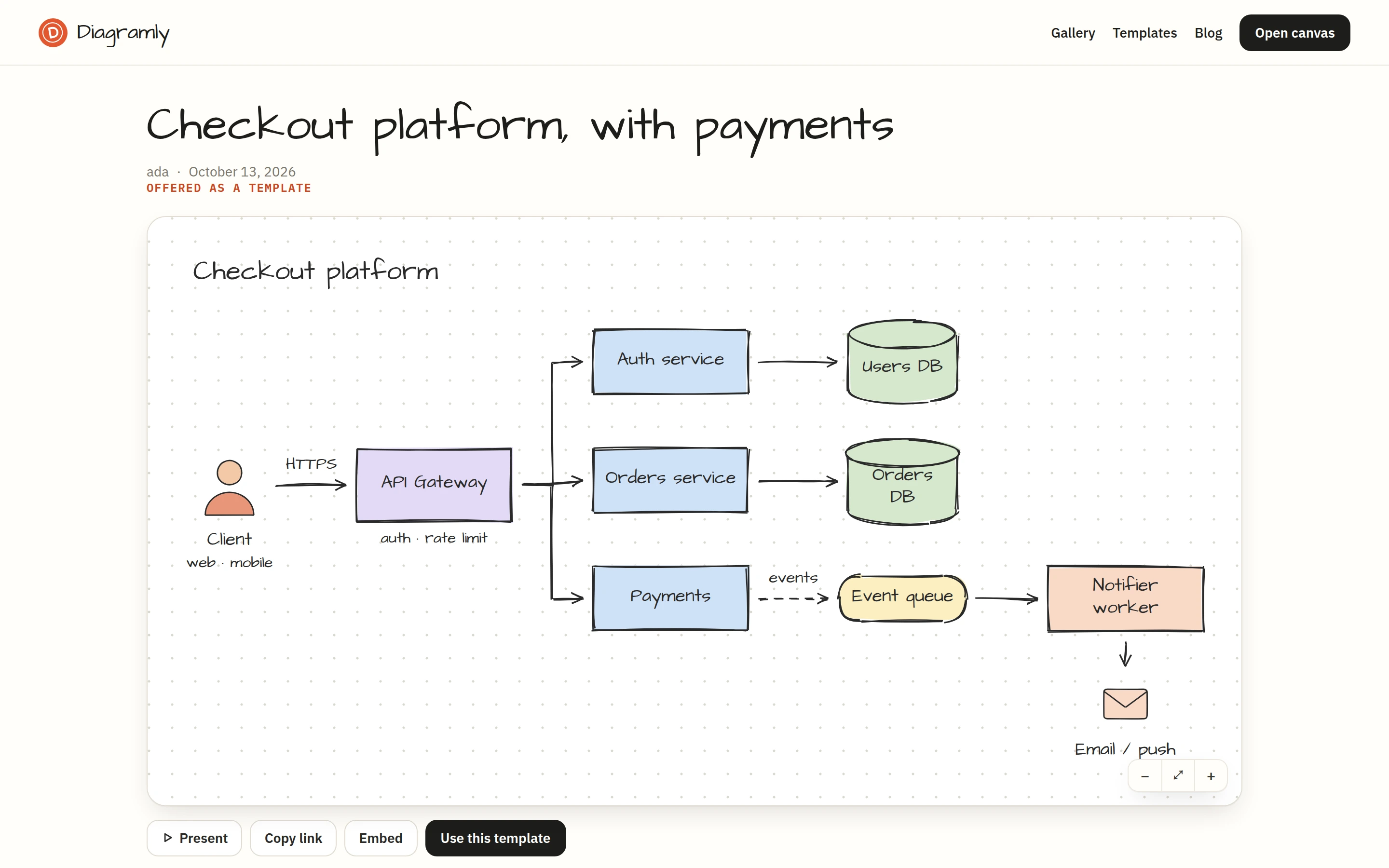
Published diagrams also appear in the gallery, where people browsing for ideas find them, and search engines index the page. If you'd rather keep a piece private, the view-only link does everything except the public listing.
Keeping it current
Diagrams rot because updating them is a chore. Two habits fix that:
- Keep the source in your account. The published page and every embed of it update from the same diagram, so a change is one edit and one Update click.
- Name a version before a big change (the clock icon in the header), so the old architecture is still there when someone asks what it used to look like.
Which one when
| You need | Use |
|---|---|
| A file in the repo, no account | SVG export |
| A README that updates itself | The published page's diagram.svg URL |
| GitHub to render it as text | Mermaid export |
| Interactive, inside a doc | Embed snippet |
| A page to send people | Published page, or a view-only link |
| A launch moment | The GIF |