Blog · release
Edit a diagram together, live, with an invite link
Invite people to one diagram to edit, comment or view. Everyone sees cursors, changes and comment threads as they happen. Inviting is Pro, joining is free.
A system architecture diagram is rarely one person's work. Someone sketches it, someone else knows where the queue really sits, and a third person spots the missing cache. Until now that meant passing a link back and forth and merging by hand. Now you can invite people into the diagram itself: to draw it with you in real time, to comment on it, or just to watch.
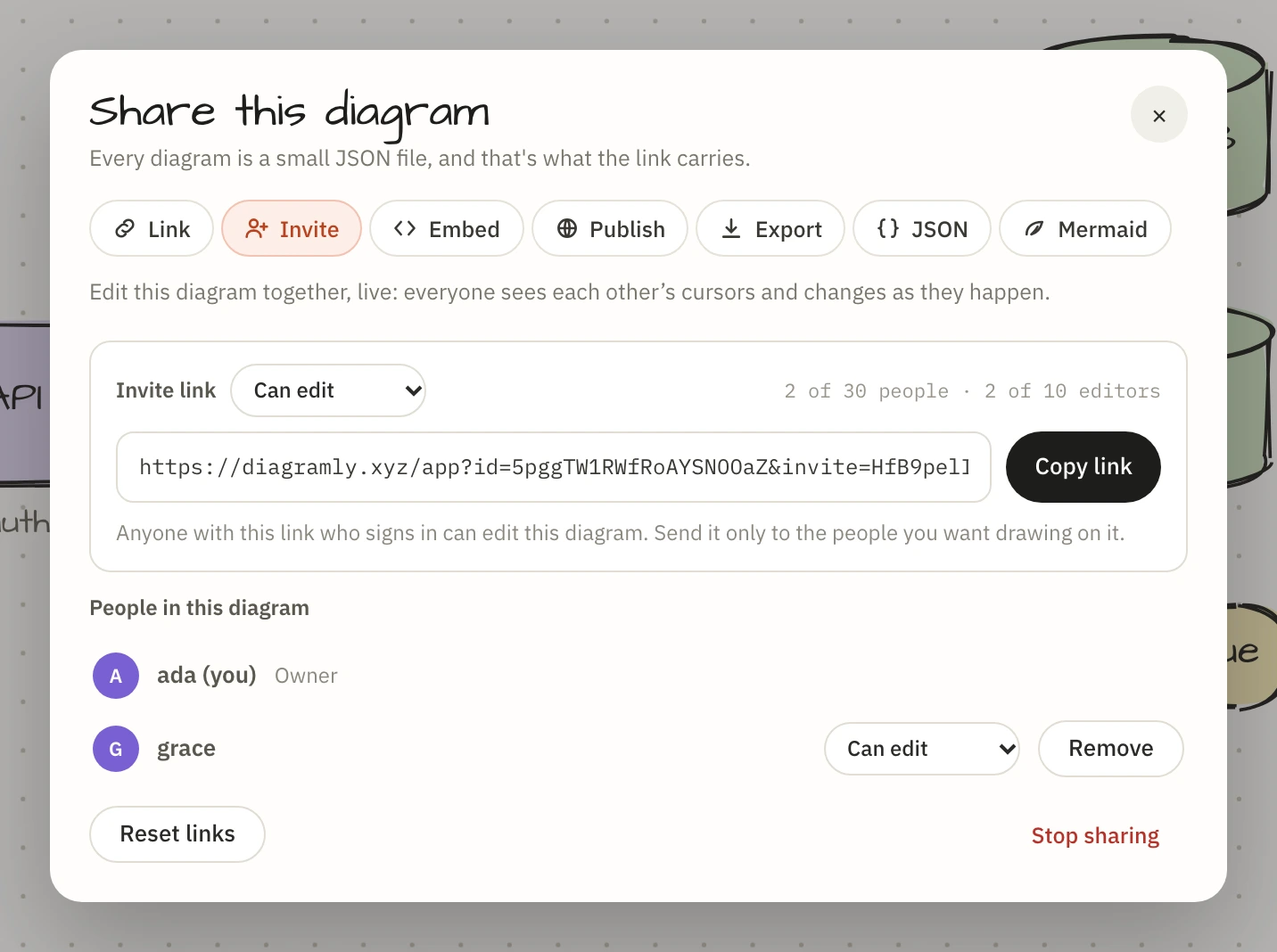
Invite people to edit, comment or view
Sign in, open a diagram that is saved to your account, and go to Share → Invite. Press Create invite link. Next to the link is a menu with three choices, and each one has its own link:
| Link | What the people who open it can do |
|---|---|
| Can edit | Draw on the diagram with you, live |
| Can comment | See it live and discuss it in comment threads, without changing it |
| Can view | Watch it live, read the comments, and nothing else |
Pick the one you want, press Copy link and send it. Most reviews want the comment link: the people you ask for feedback should not be able to move your boxes by accident.
Whoever opens a link signs in with Google and lands on your diagram with that role. There is nothing for them to install and no plan for them to buy. If they open it signed out, a banner tells them they have been invited and offers the sign-in.
Under the link is everyone who is in, each with a menu to change what they can do. A change takes effect on their screen at once, without a reload. A diagram holds up to ten editors and thirty people in all, you included.
What you see while you work together
Each person in the diagram shows up as an avatar in the header. On the canvas you see their pointer with their name on it, and an outline in their colour around whatever they have selected, so two people do not reach for the same box by accident.
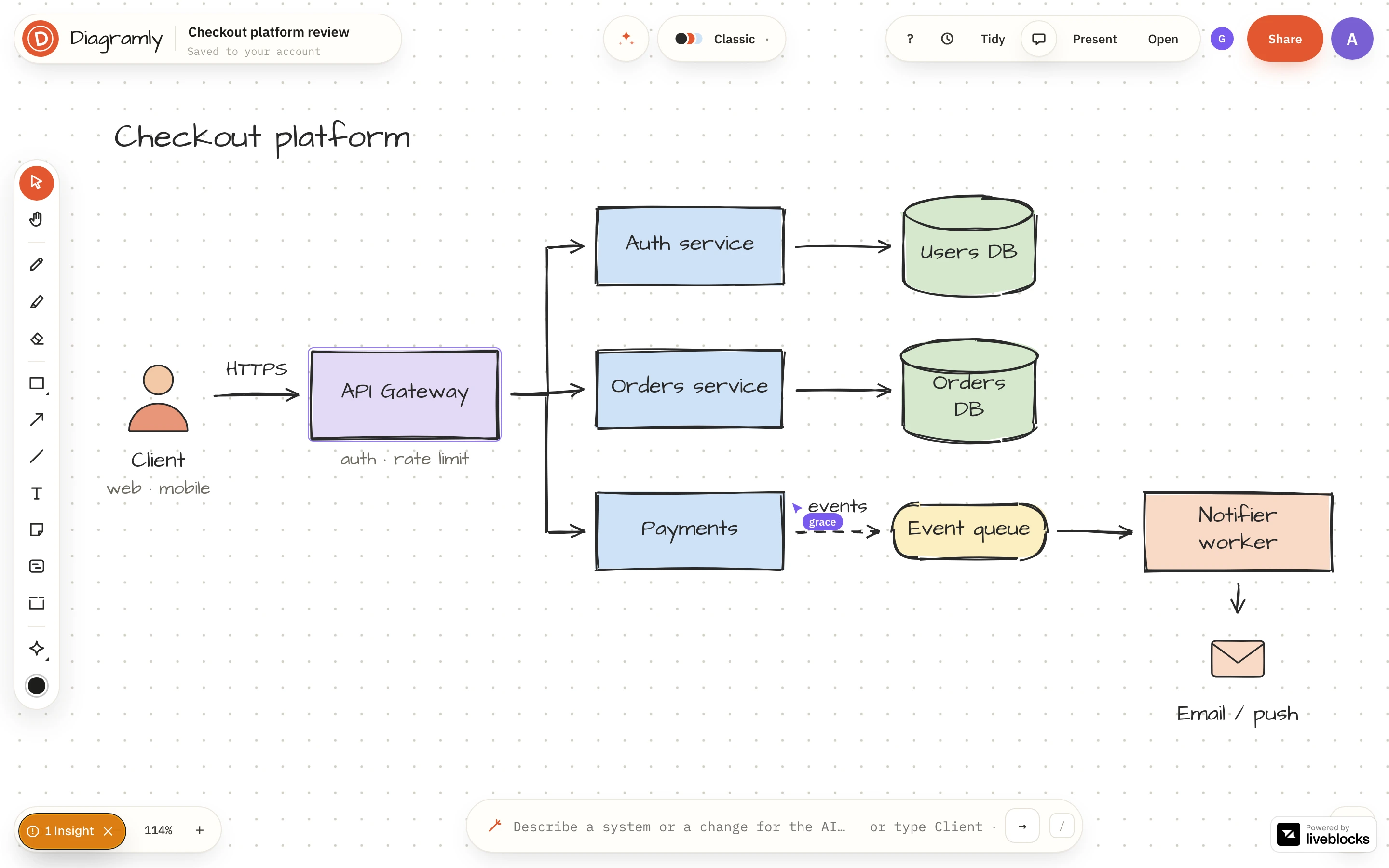
Click someone's avatar to follow them: your canvas shows what they are looking at and keeps up as they pan and zoom, which is how you walk a team through a design on a call. A frame in their colour and a Following chip remind you; move the canvas yourself, press Esc or press Stop to let go.
Changes arrive as they are made: a new service, a moved database, a relabelled arrow. If two people edit different things at the same moment, both edits stay. If they change the same property of the same shape at the same moment, one of the two wins, and nothing else on the shape is lost. Undo takes back your own changes and leaves other people's alone.
Everything that already works on a diagram works here too: the sketch line, shapes, frames, skins and Tidy all reach the others as ordinary edits.
Viewers and commenters see all of it and can move around the canvas freely, but the drawing tools are not on their screen and nothing they do changes the diagram.
Comment instead of redrawing
Everyone who can edit or comment can pin a comment thread to a shape, reply to it and resolve it, and viewers can read along. That has its own post.
Where the diagram lives
The diagram stays in your account, and it saves as people work, the same way it does when you draw alone. The people you invite find it under Open, in a section called Shared with you. Editors can change the content and the title. Version history, publishing and deleting remain yours.
Staying in control
The Invite tab is also where you manage access:
- The menu beside a person changes their role: move a reviewer up to editor, or an editor down to viewer.
- Remove takes one person out. They lose the diagram straight away, and the live session they were in is closed behind them.
- Reset links makes three new links and kills the old ones. People who are already in stay in.
- Stop sharing ends it: the links stop working and everyone you invited loses access.
Someone you invited can step out on their own with Leave, from the same tab or from the card under Open.
Anyone with a link who signs in gets that link's role, so send the edit link only to people you trust with the diagram. A stronger link moves someone up; a weaker one never takes anything away. If a link ends up somewhere it should not, reset them.
Link, invite or publish
Diagramly now has three ways to hand a diagram to someone, and they do different jobs.
| You want | Use | What they get |
|---|---|---|
| Someone to look at it, or take their own copy | Share → Link | The diagram as it is now, carried in the URL. Their edits stay with them. |
| To work on the same diagram, or have it reviewed | Share → Invite | The live diagram, to edit, comment on or view. Every change reaches everyone. |
| A page anyone can open | Share → Publish | A public page people can present and copy. |
Free and Pro
Inviting is part of Pro, $6 a month or $48 a year. Joining is free, whatever the role: the people you invite only need a Google sign-in, and a diagram shared with them does not count towards the ten diagrams a free account keeps. Comments on your own diagrams are free too.
If your Pro plan ends, nothing is deleted. Live editing pauses, and the people you invited can still open the diagram and read its comments, but cannot save changes or add comments until you are on Pro again.
Open a diagram, press Share → Invite and bring someone in. See pricing for everything Pro includes.